

Sign up now and get 50% off on your first month on any plan

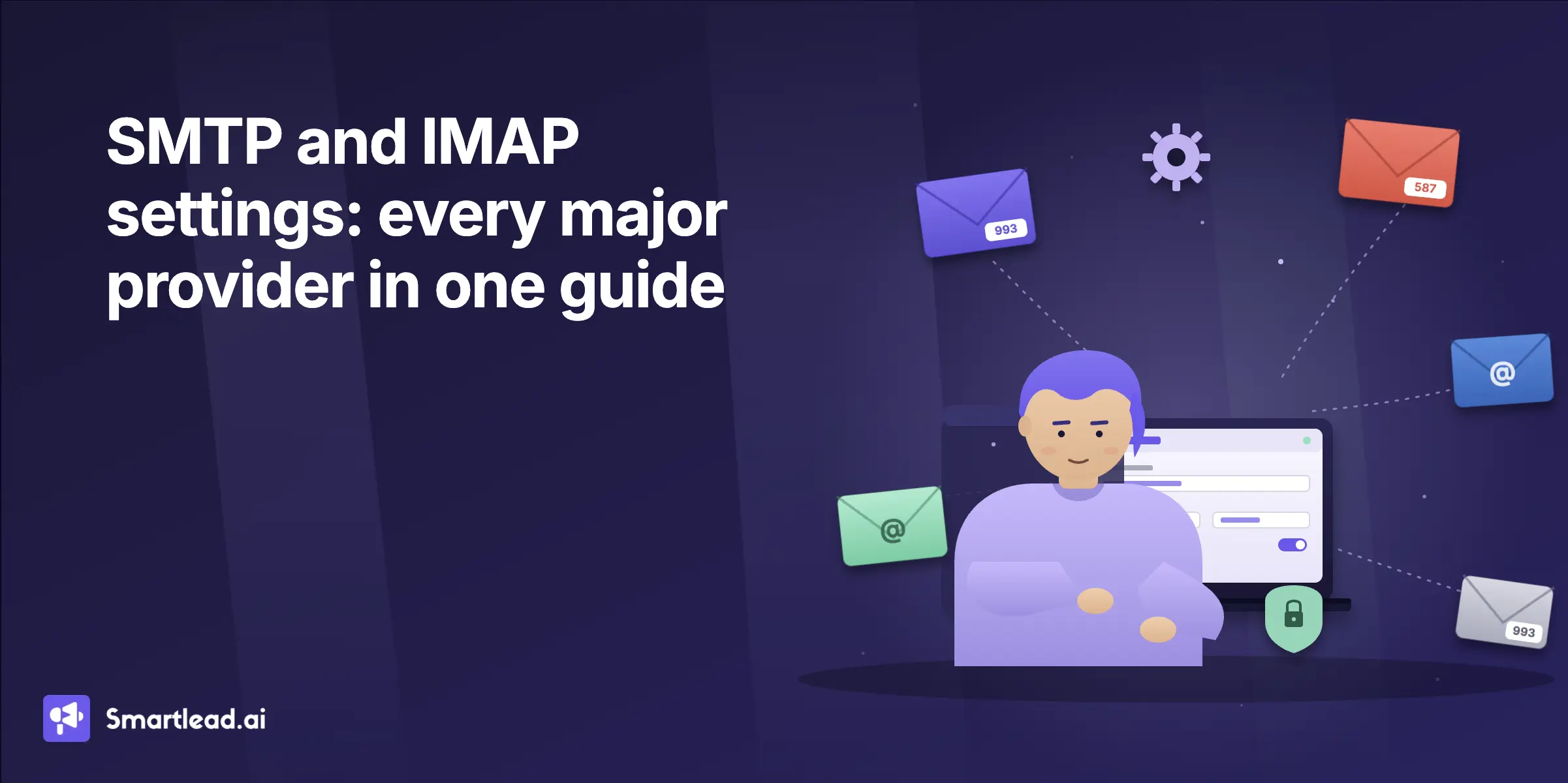
SMTP and IMAP are the two protocols that move email from your account to anywhere else. SMTP sends. IMAP reads.
Setting them up is mostly a matter of finding the right server address and port for your provider, plus a small number of authentication details that have changed since most online guides were written. This page is the working reference for every major provider, with the cold email considerations that nobody else covers.
SMTP stands for Simple Mail Transfer Protocol. It is the protocol your email client uses to send outgoing mail to a server that forwards it to the recipient.
Every outgoing message goes through an SMTP server. The server address, the port, and the authentication method are what every SMTP setting is about.
IMAP stands for Internet Message Access Protocol. It is the protocol your email client uses to read messages from a server, keeping them in sync across every device you log in from.
The alternative is POP, which downloads messages and removes them from the server. IMAP is the modern default because it keeps your inbox identical on every device.
SMTP handles outgoing. IMAP and POP handle incoming.
Within incoming, IMAP keeps mail on the server and syncs across devices. POP downloads mail and treats your client as the authoritative copy, which is why it is mostly a legacy choice now.
Source: Google Workspace admin help
Gmail's biggest setup change in 2026 affects Google Workspace accounts. Starting May 2025, Workspace accounts stopped accepting username and password connections from less secure apps, including Microsoft Outlook, iOS Mail, and macOS Mail.
If you are on a Workspace account, the supported flow is now "Sign in with Google," which uses OAuth instead of direct SMTP credentials. For personal Gmail accounts, App Passwords still work if you have 2FA enabled, and you can generate one at google.com/account under Security, 2-Step Verification, App passwords.
Daily send limit: Workspace caps SMTP at 2,000 messages per day. Personal Gmail caps at roughly 500.
Microsoft's official docs (updated August 2025) confirm personal Outlook.com and Office 365 work accounts now share the same IMAP and POP server. Only the SMTP server differs.
Source: Microsoft Support — POP, IMAP, and SMTP settings for Outlook.com
Two things to know before setup. First, POP and IMAP access is disabled by default on Outlook.com. You have to enable it under Settings, Mail, Forwarding and IMAP before any client will connect.
Second, Outlook.com and Office 365 both require Modern Auth (OAuth2). Basic password authentication was removed from Exchange Online in 2023, which means a username and password directly will fail unless you generate an App Password or your tenant administrator has re-enabled SMTP AUTH.
Source: Yahoo Help — IMAP server settings
Yahoo requires an App Password when 2FA is enabled, which is the default for new accounts. Generate one at the Yahoo Account Security page under "Manage app passwords."
Three things cause most Yahoo connection issues: 2FA without an App Password, IMAP not enabled in account settings, and an incorrect port. Check those before anything else.
Zoho's settings split two ways. Account type (personal free vs paid custom domain) determines which server, and region (global vs EU data center) determines which top-level domain.
Source: Zoho Mail — IMAP and SMTP configuration
Three things to check before setup. The smtppro and imappro variants are for paid users with custom domain email, and using the free smtp.zoho.com on a paid account will fail authentication.
If your account was created on Zoho's EU servers, the US server addresses will reject your credentials even when they are correct. You also need to enable IMAP access in the Zoho Mail web settings before any external client will connect.
Source: Apple Support — iCloud Mail server settings
iCloud Mail does not support POP. If your email client requires POP, you cannot use it with iCloud Mail.
Apple uses "app-specific passwords" rather than the App Password naming most other providers use, but the concept is identical. Generate one at appleid.apple.com under Sign-In and Security. iCloud Mail will reject your normal Apple ID password through SMTP and IMAP regardless of whether 2FA is enabled.
The IMAP username is usually just the name portion of your address (johnappleseed, not johnappleseed@icloud.com). The SMTP username is the full email address. This catches a lot of people on first setup.
AT&T and AOL both run on Yahoo's email backend after a series of acquisitions. The server addresses still use the original brand domains, but the authentication flow is Yahoo's.
Source: AT&T — POP3 and IMAP Email Settings (last updated August 2025).
These settings cover all AT&T-related email domains, including @att.net, @sbcglobal.net, @bellsouth.net, @ameritech.net, @pacbell.net, @prodigy.net, @snet.net, @swbell.net, @flash.net, @nvbell.net, @currently.com, and @wans.net. AT&T consolidated all of these after its acquisitions, and they all use the same servers.
You will need to generate a "secure mail key" from the AT&T account management page. It works the same way as an App Password and is required for any third-party email client.
Source: AOL Help — IMAP setup
AOL requires a standard App Password generated through the AOL Account Security settings, which means you need 2-Step Verification turned on first.
Source: GMX Support — IMAP server data
GMX accepts your normal account password without requiring an App Password, which is one of the few setups in 2026 that still works that way. POP3 and IMAP are off by default and need to be enabled in your GMX account settings before any external client will connect.
One thing to know: GMX dropped support for TLS 1.0 and 1.1. If your email client is more than a few years old, you may hit a handshake failure that requires updating the client or enabling TLS 1.2.
Most SMTP guides stop at the point where your email client successfully sends a test message. That is enough for personal use.
It is not enough for cold email at volume, and the reason is worth understanding before you spend a week debugging why your sequences are landing in spam.
Standard provider SMTP, whether Gmail or Outlook or Yahoo, is built for human-pace sending. Around 200 emails a day from a single mailbox is the ceiling most providers tolerate before they start throttling, or in some cases suspending the account for terms-of-service violations on bulk sending.
Cold email at any meaningful volume runs into three specific problems that do not show up in setup guides.
Gmail Workspace caps outbound at 2,000 messages per day. Microsoft 365 caps higher on paper but throttles aggressively long before that ceiling, often around 5,000 to 6,000 per day for newer tenants.
Personal Outlook.com caps at roughly 300 per day, and Yahoo caps at around 500. Cold email teams running 1,000 or more daily sends per rep hit these ceilings inside the first week.
When you send through smtp.gmail.com or smtp.office365.com, you share IP-level sender reputation with every other Gmail or Office 365 sender on the same infrastructure, including the spammers using it.
Your individual sending behavior is one signal in a much larger pool. You have less control over deliverability than you think, and the lever you do have is mostly the domain reputation rather than the IP.
App Passwords work for one mailbox. Managing them across 50 sender mailboxes, with rotating credentials and periodic 2FA refresh cycles, becomes a job nobody on the team wants to own.
Google's Workspace change in May 2025 made this worse. Less secure apps are no longer supported with password authentication on Workspace accounts, which means even App Passwords have a shorter shelf life as Google continues tightening OAuth requirements.
Above roughly 100 to 200 cold emails per day per mailbox, the setup that actually works is dedicated SMTP infrastructure with isolated sending IPs. The mailboxes ship pre-warmed, the authentication is configured once and managed centrally, and the IPs are not pooled with the broader provider base.
That is the category Smartlead's SmartSenders and SmartInfra cover. If you are sending fewer than 100 cold emails a day from a single mailbox, the standard provider SMTP tables above are fine. Above that, the math gets uncomfortable fast.
Almost always means an App Password is required and a regular password is being used. Generate the App Password from your provider's account security page and try again.
On Google Workspace accounts, this can also mean the account no longer accepts password authentication at all and needs to be set up through Sign in with Google instead.
The port is blocked by your network or firewall. Try port 587 if 465 fails, or vice versa.
Some networks, especially corporate or hotel networks, block port 25 entirely. That is usually not the port you want anyway, but it is worth knowing.
Mismatch between the SSL/TLS setting in your client and what the server expects. Port 465 expects SSL from the start of the connection. Port 587 expects STARTTLS, which begins as plain text and upgrades to encryption after the handshake.
Setting them inverted is the number one cause of TLS handshake failures. The number two cause is an old TLS version, since most providers have dropped support for TLS 1.0 and 1.1.
The server does not recognize your authentication, or you are trying to send from a domain the server cannot authenticate.
Recheck username and password, and verify the sending address is on the same domain as the authenticated account.
You have hit the provider's per-day send ceiling. This is where the cold email section above becomes relevant.
Wait 24 hours for the quota to reset, and if this is a recurring problem, your volume has outgrown standard provider SMTP.
The settings are published by your email provider. The tables above cover every major one.
If your provider is not listed, search the provider's help center for "SMTP setup" or "mail client configuration."
Both are valid SMTP ports. Port 465 expects SSL from the first byte of the connection. Port 587 expects STARTTLS, which begins as plain text and upgrades to encryption after the initial handshake.
Modern guidance is to use 587 with STARTTLS, but 465 still works with most providers.
You do if your account has two-factor authentication enabled, which is the case for Gmail, Yahoo, iCloud, and AT&T by default in 2026.
Some Outlook tenants also require it. The regular account password will return an "authentication failed" error if you try to use it. For Google Workspace accounts since May 2025, even App Passwords may not work with some apps, and Sign in with Google through OAuth is the supported flow.
The format is almost always smtp.[provider].com. Gmail is smtp.gmail.com. Yahoo is smtp.mail.yahoo.com.
The exact address with the correct port and encryption setting is in the table for your provider above.
In any email client, the SMTP configuration screen needs four values: server address, port, encryption type (SSL or STARTTLS), and authentication (your username and password or App Password).
Fill those in from the table for your provider, run the connection test, and the setup is done.
You can use provider SMTP for cold email up to roughly 100 to 200 emails per day per mailbox without immediate problems.
Above that volume, you will need dedicated SMTP infrastructure to avoid throttling and deliverability degradation. The cold email section above covers why.
No. SMTP sends outgoing mail. IMAP reads incoming mail.
They run on different servers (usually smtp.[provider] and imap.[provider]) and on different ports (587 or 465 for SMTP, 993 for IMAP).
For most use cases, port 587 with STARTTLS is the modern default. Port 465 with SSL is the legacy default but still works on every major provider.
Avoid port 25 unless you are running your own server. Most networks block it for spam-prevention reasons.
Founder, StackOptimise
Smartlead's combination of automation, unlimited inboxes, and easy campaign management has completely transformed how we run cold email campaigns.
.jpg)
Founder, Cold Email Hackers

We have about 15 companies and we use Smartlead for all of them.

Founder, DutchSave Media

One of the things I love about using Smartlead is the deliverability feature. If they landed in the bounce or spam folders, we could resolve this quickly.

Co-Founder, Growth Today

I want to continue to use Smartlead to make operations more seamless - the plan is to bring more clients here and build more SOPs.

Founder, FueltoFly

Smartlead listens to the agencies and customers and builds according to what people want, that has really made things easier for us.

Founder, OutboundSync

We build an infrastructure product, and OutboundSync communicates with Smartlead itself. I love the webhook and API. They're really well done and keep getting better.

Founder, Axoleads

With SmartDelivery, you can put all of that in the hands of the tool. It ensures your emails land in inboxes, and by running a simple test, you can see if you're hitting the mark.

Founder, Claygen
Deliverability is the cornerstone of cold email outreach. You could have the best email copy in the world, but if no one is seeing it, it's useless. I really love the feature where you can actually give client accesses to your clients.

Co-Founder, Cymate

I do not want to switch to another software. Pick a solution you trust, stick with it, and keep refining your copy.

CMO, Avalanche Capital

Managing large volumes of emails through multiple inboxes used to be a logistical nightmare. With Smartlead, the process is seamless. We book thousands of discovery calls through cold emails. These campaigns are generating leads at a scale we never thought possible.

Founder, Growth Engine X

We came for the unlimited inboxes, and we stayed for the API. 1.5M cold emails/month, 7,767+ inboxes managed.

Head of Community & Ecosystem, TxtCart

You cannot replace having 10,000 touches with potential clients. When you have that much distribution and reach, you really start to see incredible results. The simplicity of Smartlead made all the difference. It doesn't require you to be a technical wizard.

Founder, Hyperke

Smartlead has been a game-changer for us. It increased our appointment volume, improved ease of use, and offered valuable features. 80% increase in appointments/month, peak of 276 appointments in a single month.

Founder, Kinetyca

Smartlead has been our cold email backbone from day one. The platform evolves constantly, keeping pace with how deliverability and personalization need to work today. 21% overall reply rate, $175K in 4 months for multiple B2B clients.

Founder, Reachflow

Smartlead is centered around deliverability and constantly evolving. Their API is not like any other platform. Smartlead covers all our needs. The focus on core features like deliverability and API integration is unmatched.

CEO, Halfwarm

Our approach to crafting conversational emails led to reply rates that many of my peers thought were unattainable.

Co-Founder, letstrike

We've grown on zero capital, zero marketing, purely cold emailing - and that's the story we love to tell. The best approach is no approach if you can't handle domain meltdown. The second best is something like Smartlead that's built from the ground up for deliverability at scale.

Founder, Fenixtal

Smartlead's white-labeling and automation let us punch above our weight. The 12M euros sales potential? That's what happens when you combine human creativity with Smartlead's precision.

Co-Founder, Digital Creativs

Nine out of 10. Ninety percent of our clients are on Smartlead unless they come in with an existing setup. That's the default.

Co-Founder, BuildingReach

At the end of the day, you have to take a bet on one tool or another. It was a no-brainer taking that bet on Smartlead. We had to even turn down the volume of our marketing campaigns - Smartlead was capable of driving more volume than our sales team was able to fulfill.

Founder & MD, Prospectiv

Since starting the business in January of this year, we've already generated $200K in sales exclusively from cold email. Smartlead has been central to our operations and has exceeded our expectations.

Founder, Growthlynk

There's so much stuff built on top of it. I would be dead if I had to rebuild it with another tool. I can manage hundreds of senders easily. I can send hundreds of thousands of emails.

Founder, Corebits

The platform's HubSpot integration, real-time Slack updates, and advanced campaign customization have been game changers for our business and our clients'.

Founder, Apex Ascension

From day one, we've never used anything else.